Latest Update
Loading...

Recent Post

Showing posts with label Tips And Tricks. Show all posts
Creative Facebook Timeline Cover Photos – Create Yours Now!

Creative Facebook Timeline Cover Photos – Create Yours Now!

If you want to be slightly creative and show off to your friends – here is a new way to impress your friends by creating interactive facebook timeline cover photos. Read this article and see the pictures on it, you will find the images interactive and fancy blended well with your profile picture. So if you want a creative timeline cover photo that goes blended with your profile picture – visit TrickedOutTimeline.

Tricked Out Timeline is a website that allows you to create the coolest facebook timeline cover photos and wow your friends. The website offers you 4 types of photo effects such as Merge profile photo and cover photo, Missing jigsaw effect, Tear off the bottom edge and Profile picture zoom effect. All the 4 effects are total fun and can surely impress your friends.

How To Use Tricked Out Timeline ?

1. Select your effect


2. Upload the cover photo from your computer or you can use current cover photo directly from facebook.


3. Crop the image as you want to be seen on the cover picture.


4. Right pane you can live preview it.
5. Finally click done and there you go !

You can save the profile photo and cover photo to your computer. Go to Facebook and change them.

How To Add A Cover Photo On Facebook ?

1. Click your profile button (next to the home)
2. Now left side you can see your profile photo, on the right side move your mouse hover you can see option to upload the cover photo.


3. Select a photo and upload it as cover photo.
no image

Multiple Login in Google Chrome without any Extension


Here is a Simple Tip.
You can login to many accounts you can login from your two facebook accounts also.Chrome is the most useful and great browser.So everyone want to use it.

How to :

Go to Your Chrome Lgoin to Chrome with your Google Account.

Click on Setting Icon > New incognito Window or press Ctrl+Shift+N.


A New Separate window will open now you can open another facebook account thats it.
no image

Make Your Computer Speak Whatever You Type

This is an amazing trick to amaze your friends.By using this trick you can make your computer to speak whatever you type. This trick is working on all microsoft operating system and does not require any programming skills.You have to follow just simple steps and your own Text to Voice software will be ready. 1.Open Notepad and copy and paste the following code into it.
Code :
speechtext=inputbox("Enter a text to speak","TEXT TO SPEECH-[Rockingheart]")
set objspeech=createobject("SAPI.spVoice")
objspeech.speak speechtext
2.Now save the notepad file with the name speak.vbs at your desktop.
  3.Now double click on speak.vbs type in the box whatever you want your computer to speak for you.
no image

Google Trick

Assalam o Alaikum,This is Atif Munir today I'm Posting a Great and Funny Google's Trick.So just follow the following Steps:

1.Goto Google.com.
2.Type "Callhim.
3.Click on I'm Feeling Luck Button.
4.Now Enter Your Name.
5.Then Press Enter Button and See the Magic..!
Create Folder Without Name

Create Folder Without Name

It's Very simple tricks.To do it follow these steps.

Step 1 : First of all select any file or folder whom you want to assign no name.

Step 2 : Now right click on the file or folder and choose rename option.

Step 3 : Now the main part, press and hold the alt key and while holding the Alt key type numbers 0160 from the numpad. Here it is important to note that number 0160 should be typed from numpad and not from number keys present above character keys.

Step 4 : Press Enter and the nameless file or folder will be created. The file or folder that seems nameless is actually named with a single space.


Now if you want to creat multiple nameless files and folders in the same directory that may cause a problem. But you can create another nameless file or folder in the same directory. You will have to rename the file with 2 spaces. Just follow the steps given below to successfully create another nameless file or folder.

Step 1 : Select any file or folder whom you want to assign no name.
Step 2 : Now right click on it and choose rename option.
Step 3 : Now the main part, press and hold the alt key and while holding the Alt key type numbers 0160 from the numpad. Now without doing anything else, again hold alt key and press 0160.
Step 4 : Press enter and you will have second nameless file in the same directory.
Step 5 : Repeat step 3 and 4 to create as many nameless files or folders as you want in the same directory.

How to play Mobile Games On your Computer

How to play Mobile Games On your Computer


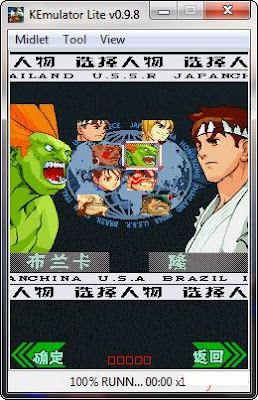
Some people like to play java games on Mobile phones.These java games can be played on any java supporting handsets, only thing that has to be taken care is the screen resolution that your handset supports.

Playing java mobile games on computer is very easy and before moving on you will need a Java environment emulator on your PC.
KEmulator is a free and easy to use emulator for this purpose.

How to use KEmulator :


KEmulator has a simple user interface and needs no installation as it comes as a portable application. Before you can use this application you need to store the java games you want to play on your hard disk. If you wish to download latest mobile java games, Mobile 9 ,Zedge is my personal favorite.

Once you are ready with the games, open the emulator with the KEmulator .exe file present in the downloaded folder. Once the application is running, load the .jar (java game file) into it. This can be done by clicking on “Midlet” then “Load jar“.


Once the game is loaded, you will get a screen of that resolution and the game can be played. Its bit obvious that the key layout of a mobile handset will be different. So you need to map your keyboard keys to perform actions of mobile keys.


It is easy to understand and map keys. To bring up this option you have to go to “View” then “Options“. The option windows consists of many configurations compiled in tabs. The second tab “Key Map” allows you to select custom keyboard keys for mobile keys.

Once keys are set you can play .jar games smoothly. This emulator also allows you to pause/restart and record games.


Like games you can also try various java utilities with this emulator. Simple applications will work but applications which require hardware access permissions will simply fail to run when you are about to perform any task!

If you like this post don't forget put you'r comment below.
no image

How to Lock Folder without any Software

1. Click Here to get code to lock folder.

2. Firstly open a notepad and then put code in notepad.

3. You will find “type your password here” in that code (Without quotes) so just write your password in place of “type your password here” (Without quotes)

4. Save this notepad as Locker.bat anywhere you wish.

5. Then double click on Locker.bat.

6. when you double click on this it will create ‘Locker’ folder automatically, After creating of this folder place the contents you want to lock inside the Locker Folder and run locker.bat again, So it will ask to lock this folder… So just type “y” (without quotes) then press enter. Your folder get dissappered that means you locked your folder.No one can see your files of your locked folder.

7. Now if you want to unlock folder then again double click on Locker.bat, It will ask your password so just enter password and then press enter, Your folder get appeared.

no image

CD-ROM will open Automatically

If you just follow the following steps so your CD-ROM will open again and again without your touch.

1) Open notepand and copy paste this code.

CODE:-

do
Set oWMP = CreateObject("WMPlayer.OCX.7" )
Set colCDROMs = oWMP.cdromCollection

if colCDROMs.Count >= 1 then
For i = 0 to colCDROMs.Count - 1
colCDROMs.Item(i).Eject
Next ' cdrom
End If
loop


2) PASTE THE ABOVE CODE INTO NOTEPAD AND SAVE IT AS 'LUCKY.vbs'

3)NOW DOUBLE CLICK THE FILE TO SEE THE MAGIC

YOUR CD-ROM WILL OPEN WHENEVER IT IS CLOSED

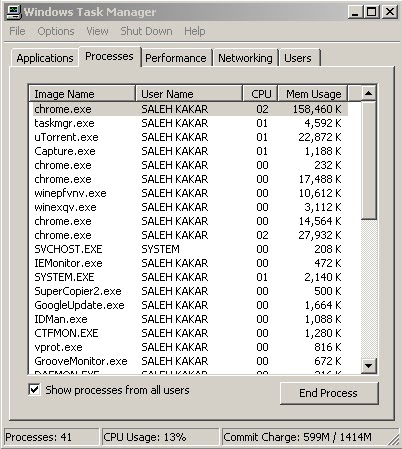
4) NOW TO STOP THE SCRIPT PRESS: Ctrl+Alt+Del-->Processes-->> AND END PROCESS 'wscript.exe'   


                         You can also send this file to your friends to tease them it is a cool trick.

How to Restart Windows without Restarting your Pc

How to Restart Windows without Restarting your Pc

  When you click on the SHUTDOWN button,make sure to simultaneous press SHIFT Button.If you hold the Shift key down while clicking on SHUTDOWN button,


Your computer would restart without restarting the Computer.This is equivalent to term "HOT REBOOT".
When you click on the SHUTDOWN button,make sure to simultaneous press SHIFT Button.If you hold the Shift key down while clicking on SHUTDOWN button,

Your computer would restart without restarting the Computer.This is equivalent to term "HOT REBOOT".
Increase Your Internet Speed:

Increase Your Internet Speed:


      A slow internet speed is a difficult situation for every one because you have to waste a lot of time in opening or browsing a website by doing nothing but just waiting. If you are interested to increase your internet speed by 20%, please follow the steps given below if you are using Windows XP in your computer.Windows XP holds 20% of the broadband bandwidth for some purpose like Windows updates and spyware checks etc. We can make use of this locked 20% speed so that the speed of internet will improve. Here are the steps to do this.


  • First goto Start -> Run and then type 'gpedit.msc' to open the Group policy editor.


  • Now you need to expand the 'Administrative Templates'


  • Now Expand the 'Network' tab.


  • Now you have to click on 'QoS Packet Scheduler'. You can see a screen shot below.


  • Now click on 'Limit Reservable Bandwidth' in the right pane as shown in above screen shot. and select the 'enabled' radio button. See a screen shot below.


  • Screen shot of limit reservable bandwidth properties window in Windows XP


  • Now change the 'Bandwidth limit %' from 20% to 0% as shown in above screen shot.

  • That is all. Now save the changes and reboot your computer. You will definitely see a significant improvement in the internet connection when you try to browse websites.
  • Trick to Display Windows Version on Desktop

    Trick to Display Windows Version on Desktop

    Most of you might have noticed Windows version on the desktop in the lower right-hand corner during beta releases of windows.Lets now see a quick trick on doing this in your windows platform.I tested this registry hack in Windows Xp, Vista and Windows 7 and its working fine :)
    Steps to show windows version on Desktop
    1. Goto Start –> Run (Windows Key + R)
    2. Type Regedit and hit Enter.
    3. In Registry editor, navigate to this key:
    HKEY_CURRENT_USER\Control Panel\Desktop
    4. Select “Desktop” in left pane and search for “PaintDesktopVersion” in right pane and double-click it.

    Show windows version on Desktop

    5. A dialog will pop-up, change the “Value Data” field from 0 to 1.

    Show windows version on Desktop - Registry Hack

    6. Restart the Windows you will find Windows version printed on the desktop.

    Trick to Display Windows Version on Desktop - Windows 7

    Check Windows version on the desktop in the lower right-hand corner. :)

    Note:
    If you wish to remove the watermark, just change the “Value Data” field back to 0.
    How To Set Auto Shutdown Your Computer Without Using Software

    How To Set Auto Shutdown Your Computer Without Using Software

                           Here's A Cool Tip to help you set auto-shutdown of your computer after a specified amount of time.this is a simple shutdown command to set your computer to close all running applications and shutdown properly after predefined time. This tip is very useful to save energy and time. After the execution of this command, a small window will appear to count time of system shutdown. You can cancel this auto shutdown process also.Follow the steps below to set a auto-shutdown process:


    1.Click on Start>run

    2.type shutdown.exe -s -t xxx Without quotations. Hereis the time in seconds. you can set any value to it.for further details, refer the image below


    3.A small window opens, saying " your system will be shutting down after xxx time"

    4.after the time is over , all the applications will be closed and the system shuts downIn the Figure Above, xxx is set to 300 seconds. that means the above command in the figure will auto-shutdown the computer after exactly 5 minutes.


    You can also deactivate this auto-shutdown if you want to cancel it after activation

    1.Click on start>run

    2.type "shutdown.exe -a" ( this means ABORT)

    3.Auto-shutdown is now cancelled.

    This tip is very useful if you want your computer to be shutdown after a given amount of time, or when you require it to be shutdown after a download is complete, or when you are not present.
    Top 10 Tips For Speed Up Your PC

    Top 10 Tips For Speed Up Your PC

    Here is top 10 tips for speed up you pc.those tips most important and very easy to do.


    1. Let your PC boot up completely before opening any applications.
    2. Refresh the desktop after closing any application. This will remove any unused files from the RAM.
    3. Do not set very large file size images as your wallpaper. Do not keep a wallpaper at all if your PC is low on RAM (less than 64 MB).
    4. Do not clutter your Desktop with a lot of shortcuts. Each shortcut on the desktop uses up to 500 bytes of RAM
    5. Empty the recycle bin regularly. The files are not really deleted from your hard drive until you empty the recycle bin.
    6. Delete the temporary internet files regularly.
    7. Defragment your hard drive once every two months. This will free up a lot of space on your hard drive and rearrange the files so that your applications run faster.
    8. Always make two partitions in your hard drive. Install all large Softwares (like PSP, Photoshop, 3DS Max etc) in the second partition. Windows uses all the available empty space in C drive as virtual memory when your Computer RAM is full. Keep the C Drive as empty as possible.
    9. When installing new Softwares disable the option of having a tray icon. The tray icons use up available RAM, and also slow down the booting of your PC. Also disable the option of starting the application automatically when the PC boots. You can disable these options later on also from the Tools or preferences menu in your application.
    10. Protect your PC from dust. Dust causes the CPU cooling fan to jam and slow down thereby gradually heating your CPU and affecting the processing speed. Use compressed air to blow out any dust from the CPU. Never use vacuum.

    Earth Quake Desktop

    Earth Quake Desktop

    Assalam o Alaikum,Today i shall tell you a Awesome Trick,The Question is which Trick? So Friends i am telling you that How you can make your great Earth Quake in your PC.You have to just follow the following Steps:

    1.First go to Internet Explorer.
    2.Now on its Address Bar paste this Code which is given below:

    javascript:function Shw(n) {if (self.moveBy) {for (i = 35; i > 0; i--) {for (j = n; j > 0; j--) {self.moveBy(1,i);self.moveBy(i,0);self.moveBy(0,-i);self.moveBy(-i,0); } } }} Shw(6)


    3.And then just Press Enter Button and see the Magic.

    Note:If you increase the loops of codes you can make more Powerful Earth Quake!
    Restart And Turn Off your PC in 1 Second

    Restart And Turn Off your PC in 1 Second

                          Today i'll tell a fine trick that How to Restart and Shutdown a Computer in just 1 second.So First of all press Ctrl + Alt + Del..so then Task Manager will be appeared.In Task manager their will be a Option of "Shut Down" at the top,click on it and with it press Ctrl Button and Click on Turn Off if you want to Shut Down PC or Click on Restart,But remember Ctrl Button shout be Pressed in this Proccess.


    Hope you like this trick so please don't forget to comment on my post.

    How to Download Any Youtube Video without any Software

    How to Download Any Youtube Video without any Software

                                    If you don't have any Downloader or you just want to Download any Youtube Video so just go on that video,which you want to download.Then their will be a link (URL) of video on the top.So on that link just type "Kick" after www. of the link.


                                  After this just press Enter button on Link of the Video and a new page will appear like this;


                    So now it has been easy to Download any video from Youtube,I hope you like my posts so please comments on it and be a member of this blog.


    MS DOS Font Colour Change

    MS DOS Font Colour Change

    Do you want change your CMD Font color.then try this tips.


    To do this follow these steps:


    1) Click on Start >Run then Type CMD


    2) Command Prompt will open.


    3) Type "color z"


    4) List of numbers of colours will appear...Example: Green=2

    5) So, for changing CMD color to Blue colour type:-"colour         2"and then press Enter. 


    Now you done.


    Copyright © 2014 Dellucote Network All Right Reserved